

Building the Frontend for Your Node.js Apps
If you’ve already read our Node.js for Beginners guide, you now understand how JavaScript can run outside the browser to power servers, APIs, and backend logic. Node.js is what lets JavaScript handle requests, talk to databases, and return data to users.
But that leads to an important next question:
How do we build the part users actually see and interact with?
That’s where Vue 3 comes in.
In this article, we’ll introduce Vue 3 from a beginner’s perspective and show how it naturally complements Node.js to create modern, interactive web applications.
What Is Vue 3?
Vue 3 is a JavaScript framework for building user interfaces, especially for web pages that update dynamically as data changes.
While Node.js runs on the server, Vue 3 runs in the browser.
Think of it like this:
- Node.js → is the engine behind the scenes. It runs on the server, handles data request, powers APIs, and business logic
- Vue 3 → Displays that data and responds to user actions. It is the brain of the interface, decides what the user sees and keeps the page in sync when data changes.
- Tailwind CSS → is the styling toolkit. It lets you design layouts and components quickly using simple utility classes instead of writing lots of custom CSS.
- TypeScript → is the safety net - it adds structure and type checking to JavaScript, helping you catch mistakes early as your app grows.
Together, they form a powerful full‑stack JavaScript setup. Forming a modern JavaScript stack where Node.js provides the data, Vue 3 displays it, Tailwind CSS styles it, and TypeScript keeps everything organized and reliable.
How Vue 3 Fits With Node.js
In our Node.js beginner guide, we talked about creating servers and APIs. Most real applications don’t just return raw text or JSON — they send data to a frontend that users can interact with.
A common flow looks like this:
- A user opens a web page in their browser
- Vue 3 renders the page
- Vue sends a request to a Node.js API
- Node.js returns data (for example: products, blog posts, or user info)
- Vue automatically updates the page with the new data
This separation keeps your app clean:
- Node.js focuses on logic and data
- Vue focuses on presentation and interaction
Why Vue 3 Is Beginner‑Friendly
Vue 3 is often recommended for beginners because it balances power and simplicity.
1. It Uses Plain HTML, CSS, and JavaScript
Vue doesn’t replace the basics — it builds on them.
If you already know:
- HTML for structure
- CSS for styling
- JavaScript for logic
…then Vue feels familiar right away.
2. Vue Is Reactive (It Updates Automatically)
One of Vue’s biggest advantages is reactivity.
Instead of manually updating the page when data changes, Vue does it for you.
Example:
- A value changes in JavaScript
- Vue automatically updates the HTML
- No page refresh needed
This makes Vue ideal for dashboards, forms, and dynamic content.
3. Vue Uses Components
Vue apps are built from components — small, reusable pieces of the UI.
Examples of components:
- A product card
- A navigation bar
- A blog post preview
- A shopping cart
Each component contains:
- HTML (template)
- JavaScript (logic)
- CSS (styles)
This keeps code organized and easier to maintain.
Check node.js installed
In the PowerShell terminal type:
PS C:\GISE\GIS Engineering\GISE - Documents\ProjectsComputer\vue3\vtson> node -v
v24.13.1
If it is not installed, see Barefoot Betters Blog Post - Node.js for Beginners
How to Check in VS Code If Vue 3 Is Installed (And Install It If Not)
When people ask “Is Vue 3 installed in VS Code?”, what they usually mean is: Does the project I opened in VS Code already have Vue 3 set up? Vue is typically installed per project (in node_modules), not “inside VS Code.”
1) Open the project folder in VS Code
In VS Code, go to File → Open Folder… and open the folder that contains your project (the one with package.json in the root).
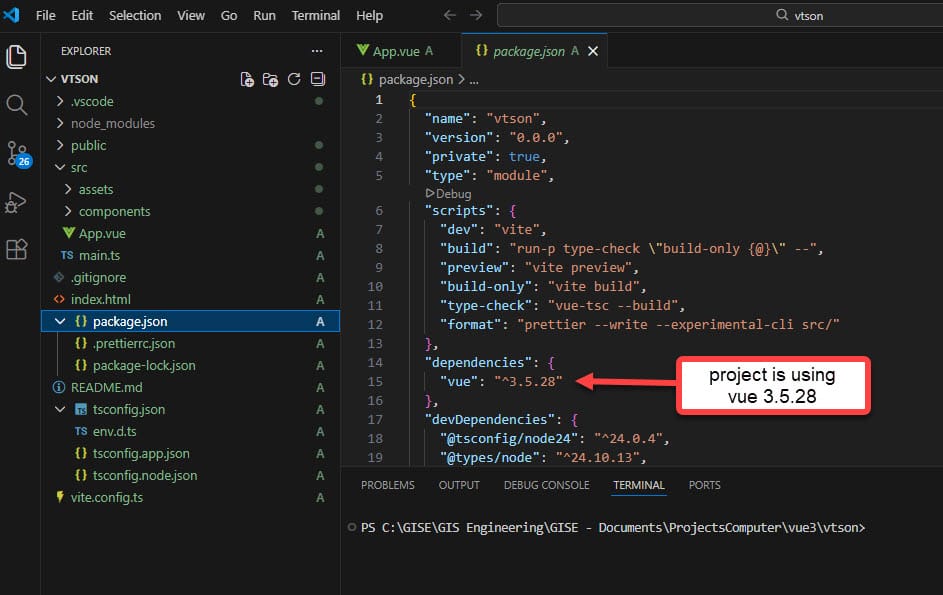
2) Quick check: look for Vue in package.json
In the VS Code Explorer, open package.json and look for a dependency like:
"vue": "^3.x.x"(or similar)
If you see vue listed under dependencies, your project is using Vue (likely Vue 3). One of the simplest ways to verify a project’s Vue version is checking package.json.
3) Terminal check (recommended): run npm list vue
In VS Code, open the integrated terminal: Terminal → New Terminal
Run:
Shell
npm list vue
This prints the Vue package and version installed in your current project. This is a commonly used way to check the Vue version in a project. [stackoverflow.com]
Tip: Make sure you run the command in the project root (the folder where
package.jsonlives).
PS C:\GISE\GIS Engineering\GISE - Documents\ProjectsComputer\vue3\vtson> npm list vue
[email protected] C:\GISE\GIS Engineering\GISE - Documents\ProjectsComputer\vue3\vtson
├─┬ @vitejs/[email protected]
│ └── [email protected] deduped
├─┬ @vitejs/[email protected]
│ └── [email protected] deduped
├─┬ @vue/[email protected]
│ └── [email protected] deduped
├─┬ [email protected]
│ └─┬ @vue/[email protected]
│   └── [email protected] deduped
└─┬ [email protected]
  └─┬ @vue/[email protected]
    └── [email protected] deduped

PS C:\GISE\GIS Engineering\GISE - Documents\ProjectsComputer\vue3\vtson> cd ..
PS C:\GISE\GIS Engineering\GISE - Documents\ProjectsComputer\vue3> cd ..
PS C:\GISE\GIS Engineering\GISE - Documents\ProjectsComputer> npm list vue
C:\GISE\GIS Engineering\GISE - Documents\ProjectsComputer
└── (empty)

PS C:\GISE\GIS Engineering\GISE - Documents\ProjectsComputer>
If Vue 3 Is NOT Installed: Two Beginner-Friendly Ways to Install It
Option A (Recommended): Create a new Vue 3 project (best for beginners)
Vue’s official quick start recommends scaffolding a new project with:
Shell
npm create vue@latest
Show more lines
This uses the official tool to generate a Vue 3 + Vite project and prompts you for features like TypeScript. [vuejs.org], [npmjs.com]
Steps:
- In VS Code Terminal:
Shell
npm create vue@latest
Show more lines
- Answer the prompts (you’ll be asked about TypeScript and other options). [vuejs.org]
- Then follow the standard start commands:
Shell
cd <your-project-name>
npm install
npm run dev
Show more lines
These are the official “install dependencies and start dev server” steps after scaffolding. [vuejs.org]
Option B: Install Vue into an existing project
If you already have a project folder and just need Vue added, you can install it with npm:
Shell
npm install vue
Show more lines
(After this, you’ll typically configure a build tool like Vite, but for beginners, Option A is usually much simpler and less error‑prone.)
VS Code Setup Tip (Highly Recommended): Install the Vue 3 Extension
To make sure .vue files work nicely in VS Code (syntax highlighting, autocomplete, TypeScript hints), install:
Vue (Official) (formerly “Volar”) from the VS Code Marketplace. [marketplac...studio.com], [vuejs.org]
In VS Code:
- Open Extensions (Ctrl/Cmd + Shift + X)
- Search “Vue (Official)”
- Install it
Vue’s TypeScript guide explicitly recommends VS Code + Vue – Official for the best Vue 3 + TypeScript experience. [vuejs.org]
If you have the older Vue extension “Vetur” installed, Vue’s docs note that Vue – Official replaces it for Vue 3 projects. [vuejs.org]
Troubleshooting (Common Beginner Issues)
npm list vueshows nothing / errors: You may not be in the project root. Open the folder containingpackage.jsonand try again. [stackoverflow.com]npm create vue@latestnot working: Make sure Node.js and npm are installed; Vue’s quick start lists Node as a prerequisite. [vuejs.org].vuefiles look like plain text: Install Vue (Official) extension.
A Simple Vue 3 Example
Let’s look at a very basic Vue 3 example that shows how data connects to the page.
<div id="app">
  <h1>{{ message }}</h1>
  <button @click="changeMessage">
    Click Me
  </button>
</div>

<script src="https://unpkg.com/vue@3"></script>
<script>
  const app = Vue.createApp({
    data() {
      return {
        message: "Hello from Vue 3!"
      }
    },
    methods: {
      changeMessage() {
        this.message = "You clicked the button!"
      }
    }
  })

  app.mount("#app")
</script>
What’s happening here?
data()stores the app’s state{{ message }}displays data in the HTML- Clicking the button updates the data
- Vue automatically updates the page
No manual DOM updates required.
Vue 3 vs Traditional JavaScript
Without Vue, you might write code that:
- Finds elements manually
- Updates text with
document.querySelector - Keeps track of state yourself
With Vue:
- You describe what the UI should look like
- Vue handles how it updates
This declarative approach is one reason frameworks like Vue are so popular for modern web apps.
How Vue 3 and Node.js Work Together (Real‑World Example)
Imagine building a simple blog:
- Node.js
- Stores blog posts
- Exposes an API like
/api/posts
- Vue 3
- Fetches posts from the API
- Displays them on the page
- Updates automatically when new posts are added
Node handles the data, Vue handles the experience.
Why Vue 3 Instead of Other Frameworks?
Vue 3 is often chosen because:
- It’s easier to learn than many alternatives
- It scales from small projects to large apps
- It has excellent performance
- It works well with Node.js and modern tooling
For beginners, Vue offers a smoother learning curve without sacrificing capability.
What You Should Learn Next
If you’re following a Node.js → Vue path, a good progression is:
- JavaScript fundamentals
- Node.js basics (servers, APIs)
- Vue 3 basics
- Components
- Reactive data
- Event handling
- Connecting Vue to a Node API
- Building full applications
This path lets you use JavaScript on both the backend and frontend, making development faster and more consistent.
Final Thoughts
Node.js teaches you how to power the backend of modern applications.
Vue 3 teaches you how to bring those applications to life in the browser.
Together, they form a practical, beginner‑friendly stack for building real‑world web projects.
In future articles, we’ll explore:
- Building a Vue 3 app step‑by‑step
- Connecting Vue to a Node.js API
- Structuring projects for growth
If you’ve mastered Node.js basics, Vue 3 is the natural next step.


0 Comments