
What It Is, When You Need It, and How it Fits Your Workflow
Introduction
If you are new to modern web development, Node.js can feel confusing. Some tutorials treat it like a programming language. Others make it sound like a server you must deploy. In reality, Node.js is neither of those things.
Node.js exists to solve a very practical problem: how to run JavaScript outside of a web browser. That single capability enables modern tools like TypeScript, Vue, build systems, and automation workflows to work smoothly on your local computer and in GitHub.
This guide is written from a beginner’s perspective. You do not need to be a backend developer to understand Node.js, and you do not need to use it for every website. By the end of this article, you will understand:
- What Node.js actually is (in plain language)
- When you can safely skip it
- How to download and install Node.js
- How to use Node.js with Visual Studio Code (vs code)
- How Node.js fits into TypeScript, Vue, and GitHub workflows
If your goal is to publish a simple website and grow your skills over time, this article will help you place Node.js in the right mental box.
What Node.js Is (Plain Language)
Node.js is a JavaScript runtime. That means it can execute JavaScript code directly on your computer, without a browser.
Normally, JavaScript runs inside a browser like Chrome, Edge, or Firefox. Node.js takes the same JavaScript engine used by Chrome and lets you run JavaScript from the command line instead.
Node.js includes two key parts:
- Node – the runtime that executes JavaScript
- npm – the Node Package Manager that installs tools and libraries
Node.js is not:
- A programming language
- A web framework
- A hosting service
Think of Node.js as infrastructure. It powers tools that prepare your code, check your work, and build files that browsers can understand.
When You Do — and Do NOT — Need Node.js
This is one of the most important sections for beginners.
You can skip Node.js if:
- You are publishing plain HTML and CSS
- You are uploading static files directly to GitHub Pages
- You are not using build tools or frameworks
For example, a simple “Hello World” website does not require Node.js.
You need Node.js when:
- You use TypeScript
- You use Vue (or React, Svelte, etc.)
- You install development tools (e.g. vite - dev server + build tool, prettier - code formatting) with npm
- You run local development servers
- You build projects before publishing
- You use GitHub Actions to build or deploy sites
Node.js becomes necessary as soon as your workflow includes modern tooling.
Downloading and Installing Node.js
YouTuber - The Common Coder - How to Install Node.js in 2026! (Mac & Windows)
Where to Download Node.js
Always download Node.js from the official website:
You will see two options:
- LTS (Long‑Term Support)
- Current
✅ Choose LTS
The LTS version is the safest choice for beginners. It is stable, widely supported, and works well with most tools.
Installing Node.js
The installer process is straightforward:
- Windows: Download the
.msiprebuilt installer and accept the defaults - macOS: Download the
.pkginstaller and follow the prompts - Linux: Use your package manager or official instructions
During installation:
- Leave default options checked
- Allow Node.js to add itself to your system PATH
Node.js is installed once on your computer and provides the runtime (convert TypeScript into JavaScript) and npm. When you create a new web project, npm downloads project-specific tools like Vue and Vite into that project's node_modules folder. This allows each project to control its own versions without affecting others.
Summary Table
| Tool / Item | Scope | Why | Uploaded to GitHub? |
|---|---|---|---|
| Node.js | Global (installed once) | Runtime environment for JavaScript tools | No |
| npm | Global (comes with Node.js) | Package manager for installing dependencies | No |
| Vue 3 | Per project | Frontend framework with version isolation npm install vue npm create vue@latest | Yes (via package.json) |
| Vite | Per project | Development server and build tool. npm install vite npm create vite@latest | Yes (via package.json) |
| Tailwind CSS | Per project | Utility-first CSS framework (compiled at build time) Tailwind CSS is installed with npm as a project dependency, just like Vue and Vite, allowing each project to control its own version and build process. npm install -D tailwindcss postcss autoprefixerbr>npm install tailwindcss | Yes (config + package.json) |
| node_modules | Per project | Local copy of dependencies for reproducibility | No (ignored with .gitignore) |
| package.json | Per project | Declares dependencies and scripts | Yes |
| package-lock.json | Per project | Locks exact dependency versions | Yes |
| src/ | Per project | Application source code | Yes |
| dist/ | Per project (generated) | Production build output | Usually No |
Which Vue command should I use
What is installed by npm install? It will look for a file called package.json in the current folder and installs everything listed in package.json into the node_modules/ directory. Remember node_modules/ is NOT committed to GitHub.
When you run npm install inside a project, npm reads package.json to determine exactly which packages to install; you only use npm install vue when Vue is not already listed there.
| Command | What it does |
|---|---|
npm install |
Installs everything listed in package.json |
npm install vue |
Adds Vue to package.json and installs it |
npm install vite |
Adds Vite to package.json and installs it |
npm install tailwindcss |
Adds Tailwind CSS to package.json and installs it |
Verifying Installation
After installation, open a node terminal/console (or the VS Code terminal) and run node -v (will return the version) and npm -v (also returns the version)
node -v
npm -v

PS C:\gise\GIS Engineering\GISE - Documents\ProjectsComputer\Typescript> node -v
v24.13.1
PS C:\gise\GIS Engineering\GISE - Documents\ProjectsComputer\Typescript> npm -v
11.8.0

If both commands return version numbers, Node.js is installed correctly.
To test out the node, type node in the PowerShell terminal and write this code
To exit the node console either type .exit or Ctrl+C twice
PS C:\gise\GIS Engineering\GISE - Documents\ProjectsComputer\Typescript> node
Welcome to Node.js v24.13.1.
Type ".help" for more information.
> function hello() {console.log("Hello World")}
undefined
> hello()
Hello World
undefined
> .exit
PS C:\gise\GIS Engineering\GISE - Documents\ProjectsComputer\Typescript>
Using Node.js with Visual Studio Code
Why VS Code Works Well with Node.js
Visual Studio Code works extremely well with Node.js because it includes:
- Built‑in JavaScript support
- Integrated terminal
- Debugging tools
- Excellent extensions
Important clarification:
VS Code does not include Node.js.
Node.js must be installed separately.
Running Your First Node Script
- Create a new folder on your computer
- Open that folder in VS Code
- Create a file named
app.js
Add this code:
console.log("Hello from Node.js");Open the VS Code terminal and run:
node app.js
You should see:
Hello from Node.jsThis confirms Node.js is working locally.
Understanding npm (Without Overloading)
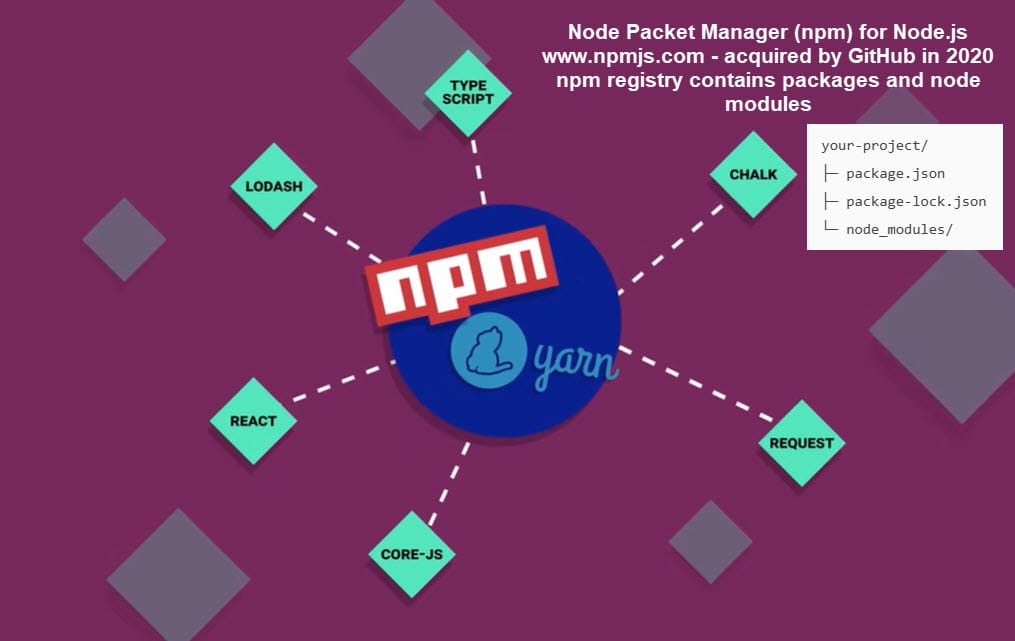
npm is the Node Package Manager. It installs and manages tools your project depends on.
When you see files like:
package.jsonpackage-lock.jsonnode_modules/
They exist because npm is managing dependencies.
Key beginner concepts:
package.jsondescribes your projectnode_modulescontains installed toolsnode_modulesis not committed to GitHub
- npm can reinstall everything from
package.json
You do not need to memorize npm commands right now. Just understand its role.
How Node.js Works with TypeScript
TypeScript is not executed directly by browsers.
Here’s the simplified workflow:
- You write TypeScript (
.ts) - Node.js runs the TypeScript compiler
- TypeScript is converted to JavaScript
- Browsers run the JavaScript
Node.js is responsible for running the tools that perform this conversion. It does not replace the browser.
If you use TypeScript, Node.js is required.
How Node.js Works with Vue
Vue applications run in the browser — not in Node.js.
Node.js is used before deployment, not after.
Node.js handles:
- Creating Vue projects
- Running local development servers
- Bundling files
- Optimizing code for production
- Generating static assets
Once built, the output is plain HTML, CSS, and JavaScript that can be hosted anywhere.
Think of Node.js as the build engine, not the runtime for Vue apps.
How Node.js Fits into GitHub Workflows
Local Development
On your computer:
- Node.js installs dependencies
- Node.js builds your project
- Git tracks source files
GitHub Repositories
Your repository typically includes:
- Source code
package.json- Configuration files
Your repository does not include:
node_modules
GitHub Actions
When GitHub builds your project:
- GitHub installs Node.js automatically
- Dependencies are installed
- Builds are run
- Output is deployed
Node.js enables automation — not hosting.
Common Beginner Mistakes
Avoid these common misunderstandings:
- Thinking Node.js replaces the browser
- Thinking Node.js must be deployed to production
- Committing
node_modulesto GitHub - Installing random Node.js versions without reason
- Assuming Node.js is required for all websites
Node.js is a tool, not a requirement.
Summary: The Mental Model to Remember
Keep this model in mind:
- Browsers run JavaScript for users
- Node.js runs JavaScript for developers
- Node.js powers tools, builds, and automation
- Node.js prepares code — it does not serve users directly
You do not need to master Node.js immediately. You only need to understand why it exists and when it becomes useful.
What’s Next
If you’re following the Barefoot Betters learning path, good next steps include:
- Reviewing TypeScript basics
- Learning Vue fundamentals
- Understanding SSH for Developers
- Connecting builds to GitHub Pages
Node.js is the foundation that supports all of these tools — quietly and effectively.


0 Comments