

Introduction
SSH (Secure Shell) is one of those tools that quietly sits underneath modern development workflows. You may not think about it every day, but if you push code to GitHub, deploy a website, or connect to a server, you are almost certainly using SSH—whether you realize it or not.
For developers, SSH solves a critical problem: how to securely prove who you are when connecting to a remote system. Instead of repeatedly entering usernames and passwords, SSH uses cryptographic keys to establish trust between your local computer and services like GitHub or your web hosting provider. This approach is both more secure and easier to automate.
This guide focuses on SSH from a developer’s perspective, not as a deep cryptography lesson or a system administration manual. You’ll learn:
- What SSH keys are and how they work at a high level
- Why GitHub requires SSH (or token‑based authentication)
- How public and private keys are used safely
- When and why you might enable SSH on a web hosting account
Why SSH Matters for Developers
SSH (Secure Shell) is the standard way developers securely access remote systems. You’ll commonly use SSH to:
- Push code to GitHub without passwords (unless you setup passphrases which I discourgage)
- Deploy applications to a server
- Transfer files securely (SFTP)
- Manage hosting environments from the command line
If someone gets your private key, they can act as you from that computer. If someone gets your public key, nothing bad happens.
SSH Workflow
- Generate SSH key (private and public) for your local computer
- Upload the public key to GitHub or hosting provider's cPanel
- Authenticate automatically using your private key
- $HOME/<username>/.ssh/publickeyname.pub
Set Up SSH Keys on Web Hosting
Secure Shell (SSH) allows you to connect securely to services like GitHub and your web hosting provider without using a username and password each time. Instead, SSH uses key‑based authentication, which is more secure and widely recommended.
How SSH Authentication Works (High Level)
- You generate an SSH key pair:
- Public key → uploaded to GitHub or your web hosting account
- Private key → stays securely on your local computer
- GitHub and hosting providers verify your identity using the public key.
- Your private key is never shared.
⚠️ Important: Never upload or share your private key.
GitHub Authentication Note
Why GitHub Uses SSH Keys
GitHub removed password authentication for Git operations. SSH keys replace passwords with cryptographic proof of identity, improving security and automation.
GitHub no longer supports basic username/password authentication for Git operations. Authentication now uses:
- Personal Access Tokens (PATs) for HTTPS, or
- SSH keys (recommended)
In this guide, we use SSH keys.
Official GitHub documentation:
Recommended Video Tutorials (Optional but Helpful)
These videos visually walk through SSH key creation and setup:
- The Common Coder – The Ultimate GitHub SSH Key Tutorial (Fast & Easy)
- CSharpe67 – cPanel SSH from PuTTYgen
Download and Install PuttyGen
After installing the program, run it. Verify key type is RSA (DSA error below) if creating the key for NameHero. Use key type ECDSA to create the key for GitHub.com. The default RSA type key and DSA keys are no longer supported on Github as of March 2022. Note, you have to move your mouse around on the PuttyGen program, otherwise the program will just stall out.
According to the cPanel docs - SSH Access says to use a DSA key type for quicker key generation and signing times. Use RSA keys for quicker verification times.
Unable to upload DSA public key to NameHero. Did have success with RSA and ed25519 key types.
Save the public and private keys locally in Windows home directory
PS C:\Users\jjensen\.ssh\[email protected]
PS C:\Users\jjensen\.ssh\[email protected]

same as

PS C:\$HOME\.ssh\[email protected]
The public key (.pub) gets uploaded to the NameHero cPanel. The private key created by Putty (.ppk) stays on the local computer (don't upload it or share it with others).
Leave the passphrase blank, otherwise every time to connect to GitHub to upload files, will have to type in the passphrase.
Also every computer you use to connect to NameHost or GitHub will require its own SSH key pairs.
Using Windows PowerShell
PS C:\Users\jjensen\.ssh> ssh-keygen -t ed25519 -C "[email protected]"
Generating public/private ed25519 key pair.
Enter file in which to save the key (C:\Users\jjensen/.ssh/id_ed25519):
Enter passphrase (empty for no passphrase):
Enter same passphrase again:
Your identification has been saved in C:\Users\jjensen/.ssh/id_ed25519
Your public key has been saved in C:\Users\jjensen/.ssh/id_ed25519.pub
PS C:\Users\jjensen\.ssh> ls

    Directory: C:\Users\jjensen\.ssh

Mode                 LastWriteTime         Length Name
----                 -------------         ------ ----
-a----         2/19/2026  11:58 AM            419 id_ed25519
-a----         2/19/2026  11:58 AM            110 id_ed25519.pub
SSH with Hosting Providers
Web Hosting Example: NameHero.com
The following steps are specific to NameHero shared web hosting, where SSH and SFTP are disabled by default.
Step 0: Request SSH Access from NameHero
Before you can use SSH or SFTP, open a support ticket with NameHero and request the following:
- Enable SSH / SFTP access SSH/SFTP is disabled by default on NameHero Web Hosting accounts.
- Confirm your cPanel username
- Typically your first initial + last name
- Example:
jjensen
- Ask for the server hostname
Examples:node619.namehero.netftp.node619.namehero.net
- Confirm the SSH / SFTP port (vary with hosting provider)
- Common NameHero ports include:
220037980
- Common NameHero ports include:
✅ Keep this information handy — you will need it for:
- SSH terminal access
- SFTP tools like FileZilla
- Key‑based authentication
Login to NameHero cPanel to paste the public key
cPanel -> Security -> SSH Access -> Manage SSH keys -> Import Key
Connect with Powershell Terminal
PS C:\Users\jjensen\.ssh> ssh -p 37980 [email protected]
The authenticity of host '[node619.namehero.net]:37980 ([103.120.48.99]:37980)' can't be established.
ED25519 key fingerprint is SHA256:1tXYc/7d2UL2oiTMgK2/DJvtjVo5yc++nLIG1MuWadc.
This key is not known by any other names.
Are you sure you want to continue connecting (yes/no/[fingerprint])? yes
Warning: Permanently added '[node619.namehero.net]:37980' (ED25519) to the list of known hosts.
[email protected]: Permission denied (publickey,gssapi-keyex,gssapi-with-mic).
Success using SSH with the default private key name
PS C:\Users\jjensen\.ssh> ssh -p 37980 [email protected]
Activate the web console with: systemctl enable --now cockpit.socket (just ignore this message)

[jjensen@node619 ~]$ pwd
/home/jjensen
[jjensen@node619 ~]$
Official NameHero Documentation
What You’ll Do Next (Summary)
After SSH is enabled on your hosting account, you will:
- Generate an SSH key pair on your local computer
- Upload the public key to:
- GitHub
- NameHero (via cPanel)
- Use the private key for secure access from:
- Terminal
- VS Code
- FileZilla (SFTP)
SSH with GitHub
Login to GitHub
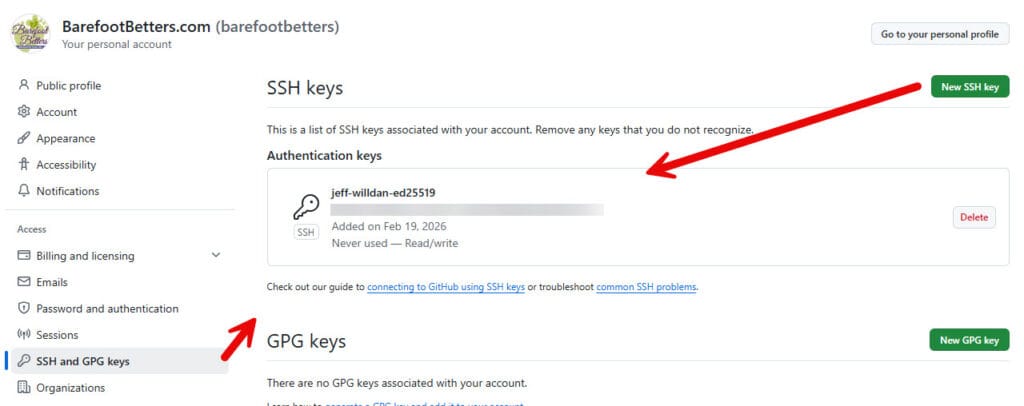
- Settings -> SSH and GPG keys -> New SSH key
- Paste the public key saved in C:\Users\jjensen\.ssh\id_ed25519.pub
- Title "jeff-willdan-ed25519"
Test the connection from vs code - Powershell terminal
PS C:\Users\jjensen\.ssh> ssh -T [email protected]
The authenticity of host 'github.com (140.82.116.3)' can't be established.
ED25519 key fingerprint is SHA256:+DiY3wvvV6TuJJhbpZisF/zLDA0zPMSvHdkr4UvCOqU.
This key is not known by any other names.
Are you sure you want to continue connecting (yes/no/[fingerprint])? yes
Warning: Permanently added 'github.com' (ED25519) to the list of known hosts.
Hi barefootbetters! You've successfully authenticated, but GitHub does not provide shell access.
PS C:\Users\jjensen\.ssh>
Conclusion
SSH is not just a “server admin tool”—it is a foundational part of modern development. Whether you are authenticating with GitHub, transferring files securely, or managing a remote hosting environment, SSH provides a secure and reliable way to connect without exposing passwords.
The most important concept to remember is simple:
- Your private key stays on your local computer and is never shared
- Your public key is safe to upload to GitHub or a server
- Together, they allow services to verify your identity securely
Not every developer needs SSH access to web hosting right away. As your projects expand—custom deployments, server management, or SFTP workflows—SSH becomes an essential skill rather than an optional one.
If you take only one thing from this guide, let it be this: SSH keys replace passwords with trust. Once set up correctly, they make your workflow more secure, more professional, and easier to scale.


0 Comments