

Divi is both a theme and page builder used to create WordPress websites.
Divi Building Block Hierarchy
The building blocks of Divi are Sections, Rows, Columns, and Modules. Sections contain rows, which in turn contain columns, which in turn contain modules. Question - where do Divi Layers (which are just a different view kinda like Wireframe Mode), Divi Themes, Divi Layouts, and WordPress Pages (Divi Page Settings) fit? Are pages parent to Sections?
Are Layouts and Pages the same thing? https://www.elegantthemes.com/documentation/divi/customizer-layout/ you can give a custom background for the Layout.


1-Page
Use Divi Page Settings to add the Featured Image of the Post.
Gear Icon – Page Settings: The gear icon brings up the Page Settings window. This is where you can apply custom settings to that page only. These are not global settings, but will only apply to the page you are working on. (see https://www.elegantthemes.com/documentation/divi/visual-builder/)
2-Section (blue)
There are three types of sections: Standard/Regular, Specialty, and Fullwidth

Regular
asdf
Specialty
Rarely used, is a combination of section and row.
Fullwidth
Never use Fullwidth section, older technology and hopefully removed in the future version, other modules can do Fullwidth. Fullwidth modules can only be placed within Fullwidth sections.
section dividers
Divi Help - Fullwidth Slider Module - allows for text mask over an image

3-Row (green)
asdf
4-Column
asdf
5-Module
The Modules are the building blocks of the WordPress Post or Page. Sections and Rows and Columns are just the structure to hold Modules.
How do you use Divi Modules with WordPress Gutenberg Blocks? Can't according to Farhar with Divi Support but he added it to the wishlist (10-18-2024)
Divi Spacing Options
Margins control the space around an object while padding controls the space inside an element.

best practice to use a margin to create spacing between multiple columns in a row. Another common use case would be to use a margin to separate elements (or modules) within a column.

Padding adds space within an element to create separation between the child element(s) it contains. For example, adding padding to a row would create spacing around the column(s) it contains. Adding padding to a column would create spacing around any elements it contains. And so on. If you want to add space inside an element and create more space between the element’s content and the element’s border, then use padding.
Appears Divi adds 54px padding to sections and rows (not modules or columns) even though the Padding field is blank. Need to manually enter 0px to override it. According to Moin from ElegeantThemes.com VIP Support, this is not documented - "There is no article on this but only SECTION & ROW has default padding. You don't need to remove them but you can remove those spacing if needed."

Reference
Divi Documentation - Divi Spacing Options
How do place text over an image?
Don't use a blurb module. Instead, place the image in the Row or Column setting as the background image. Then add a Text module inside that Row/Column.
Divi Library
Ability to safe Divi Sections and Divi Modules that can easily be copied into pages and post custom templates. Will save the sidebar widget and a buy now button (module can be a button, image or text). Then just edit the product ID and we quickly added a buy now button to the bottom of each post.
References
Elegant Themes - An Overview of Divi Sections
Elegant Themes - Getting Started with the Divi Builder
Divi Theme Options
Navigate to your WordPress Dashboard → Divi → Theme Options → General
Back To Top Button: If enabled, it will display the Back To Top Button. The users can click on this button to automatically scroll to the top of the page.

References
Divi Theme Builder
Use the Theme Builder to customize your header, footer and post templates. The Divi Theme Builder is an interface within Divi that allows you to use the Divi Builder to construct theme templates and assign those custom templates to pages or posts across your theme. For example, you can build a custom post template layout for all blog posts using the Divi Builder. Custom templates allow you to create templates for pages or posts you don't want to inherit the default template. In our case, create custom template for All Posts, All Products, and so on.

See Divi Help - Using The Divi Theme Builder
Default Website - Template
Global Header
Menu - Dropdown menus appear when hovering over main menu links that contain sub-links. Dropdown menus are created and managed via the WordPress dashboard under “Menus”.
Menu - Hover Background Color
Need Custom CSS to change the drop down menu hover background color.

Add this to the Divi Fullwidth Menu Module, under Advanced -> Custom CSS
selector .et-menu ul li a:hover{
    background-color: #2ea3f2; /* Please change the value according to your need*/
}
Divi Help - The Divi Fullwidth Menu Module
Global Footer
All Posts - Custom Template
A blog post template is a site-wide template used for single blog posts on your website. It is a predesigned template built with dynamic content so that any new or existing post will automatically inherit the layout and design of the assigned template. Having a ready made template for your posts can speed up the blogging process by eliminating the need to design the elements of the post on the fly and just focus on writing content. Also a blog post template can incorporate extra elements (like comments, share buttons, and email options) to the post to increase user engagement. (see What is a Blog Post Template and Why Do You Need One?)

Related Blog Posts
Reference - How to Add Related Posts to Your Divi Blog Post Template
What a post slider that moves/scrolls/slides between all the posts in that category. So if I have 10 posts in the current category, at the bottom of the post I would like a slider to scroll and see the other 7 (first 3 should already be visible). Example from Natural Living Family Blog. My current blog, clicking older post loads a new page.

Sidebar - Divi uses WordPress
Edit sidebar margins and padding using custom CSS

Recommend changing the Sidebar Sticky Position to "Do Not Stick" otherwise the for long posts, if you want to get to the bottom of the Sidebar, you have to scroll down to the bottom of the post because it is sticky on the top.

Remove Sidebar Widget from Product Pages
To avoid confusing customers when they start the purchasing process, it is recommended to remove the sidebar widget from product pages. Here is the procedure:
Example product page: https://www.barefootbetters.com/product/mason-jar-blender-top-for-vitamix

Step 1 - create Divi Custom Theme Builder template for "All Products"

To remove the vertical gray line, change the background color the All Products -> Custom Body, under section settings with Background = #FAFAFA

References
Divi Help - The Divi Sidebar Module
All Products - Custom Template
WooCommerce Product - Stock
- In Stock
- Visibility
- Product is visible to the customers in the shop and search
- Purchasable: Yes. The 'Add to Cart' button is active
- Stock Quantity: Must be >0 or stock management is disabled
- Visibility
- Out of Stock
- Visibility:
- By default: product is hidden from the shop/catalog if the WooCommerce setting "Hide out of stock items from the catalog" is enabled.
- Otherwise, it's visible but shows as "Out of stock"
- Purchasable: No. "Add to Cart" button is removed or disabled.
- Stock Quantity: typically 0, and the product is not set to allow backorders
- Optional Message: N/A
- Visibility:
- On Backorder
Out of Stock - Still display the product but disable the "Add to Cart" button. Confirm the "Out of stock visibility" is unchecked.

Out of Stock example - add to cart button disabled

All Product Category Pages - Custom Template
The idea is https://www.barefootbetters.com/product-category/ is the parent page for product categories, and
Child pages are the product groups (Essential Oils, Soaps, Herbs, etc)
- Cooking & Recipes - Raquel
- Essential Oils https://barefootbetters.com/product-category/essential-oils/
- Herbs & Formulas
- Mason Jar Accessories
- Services: WordPress - Ernie, Energy - Joan, Counseling - Bill, Women's Health - Rachel
- Soaps & Containers
Grandchild pages are the actual products
- Cypress Essential Oil by Nature's Fusions
- Cypress Essential Oil by doTERRA
Search Results - Custom Template
wptools.io - WC Ajax Product Filter plugin provides sorting and tech support form.
Divi Engine - Divi Ajax Filter - can filter by categories and subcategories. Demo site.
Filter Everything plugin
All Category Pages - Custom Template
Post Category and Post/Category Title. Recommend using a Text Module and Post Title Module. The below screenshots just use a Text module and add HTML tags before and after. This is recommended by How to Design a Blog Post Template with Divi’s Theme Builder but is written in 2022 and I feel there are better ways (use Text Module and Post Title Module). Non-standard way to edit Text in Divi using this HTML tags before and after.


asdf
My Account - Custom Template
My Account Features
- My Account - display user information
- Name
- Change Password
- Avatar
- My Orders
- Order History and Details
- My Wishlist integration (YITH WooCommerce Wishlist)
- Downloadable Products Access
- Address Book
- Edit Billing address
- Edit Shipping address
- Payment Methods
- Coupons
- Store Credits
- Newsletter subscription
- Manage newsletter
- MailPoet plugin can link the subscription management page directly to this endpoint
- Support
- FAQ - create a simple FAQ page and link to it under My Account
- Contact Form - create a contact form using Contact Form 7 or another plugin and link the form page to this endpoint. See wbcomdesigns.com help
- Communication
- Logout
Swanson Vitamins - My Account

Eden Botanicals - My Account

Susan's Soaps - My Account

Susan's Soaps - My Account - Payment Methods

References - my account
Elegant Themes - How to Design Custom Account Pages for WooCommerce with Divi Builder
Elegant Themes - Woo Module Settings
UsersInsights - How to add a profile picture to a WooCommerce User and How to Customize the My Account Page in WooCommerce
WBCOM Designs - WooCommerce Custom My Account Page is free and recommended by James Allen at Website Learners. Documentation on Woo Custom My Account - login to https://wbcomdesigns.com/wp-login.php and go through the checkout process, the plugin is free, and when done, you will be given a link to download the plugin .zip file.
WBCOM Support - https://wbcomdesigns.com/support and [email protected] - help from CEO of Wbcom Designs - Varun Dubey. Available at upwork - https://www.upwork.com/agencies/wbcomdesigns/
Shop - Custom Template
Cart - Custom Template
The customer order flow goes #1 Shop -> #2 Cart -> #3 Checkout -> #4 My Account
Divi -> Theme Builder -> Cart Custom Template

WordPress Page -> Cart

- Top of Page
- Promo bar/banner - free shipping on orders over $75
- Woo Notice button - "Only $10.00 From Free Shipping"
- Shopping Cart text - might need smaller size than default
- Cart
- left column: Product image thumbnail - might need to increase size, see The Divi Woo Cart Products Module
- right column: Cart totals
- Calculate shipping
- Buttons
- left column: Apply Coupon - enter Discount Code
- left column: Update Cart
- Continue Shopping - appears doesn't work with Divi
- might need to install plugin (Continue Shopping for WooCommerce)
- How to Add Continue Shopping button in WooCommerce
- right column: Checkout
- Bottom of Page
- Woo Cross Sells Module - "You Might Also Like"
Divi Help - Cart Custom Template
How to Create a WooCommerce Cart Page Template with Divi
How to Create an Animated Promo Bar for Your Page Templates in Divi
The Divi Woo Cross Sells Module
The Divi Woo Cart Products Module
Example Shopping Carts
Bumblebee Linens - shopping cart

Site Zinc - shopping cart

Barefoot Betters - shopping cart

Eden Botanicals - shopping cart

Susan Soaps - Shopping Cart

kid in charge - Shopping Cart

Plant Therapy - Shopping Cart

Woo Notice Page Type - Cart
Divi Help - WooCommerce Notice

Woo Notice Page Type Product - button is cart
Woo Notice Page Type Cart - button is "update cart"
Woo Notice Page Type Checkout - button is coupon
How do I turn on the "view cart" button in the Woo Notice module for Page Types Product and Checkout? See the Divi example at https://www.elegantthemes.com/demos/product/essential-oil/

The Woo Cart Notice Module allows you to add the WooCommerce Cart Notice element to any WC product page in Divi. The Cart Notice element is a notification that pops up on the page whenever a user successfully adds a product to the cart by clicking the Add to Cart button. In addition to a notification message, the cart notice also provides a “view cart” button.
Woo Cart Notice Module Key Options
In addition to the common content, design, and advanced options available to all Divi Modules, the Woo Cart Notice module has the following design options:
- Text – for styling the notification text
- Button – for styling the “view cart” button within the Cart Notice.
By default, the Cart Notice will have a background color that is relative to the default theme accent color within the theme customizer settings. But you can easily override this styling within the Cart Notice Module design settings.

Checkout - Custom Template

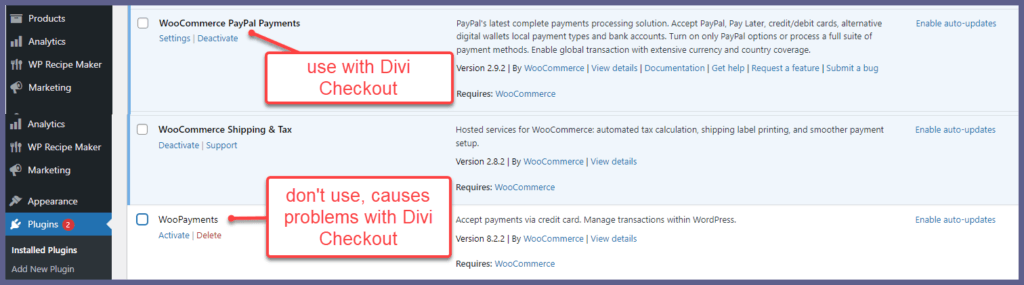
Problem with Divi Checkout and WooPayments plugin
Divi Help - Checkout Custom Template
The Divi Woo Checkout Shipping Module
The Divi Woo Checkout Billing Module
Divi Woo Modules
Divi has a total of 16 Woo Modules, see Divi WooCommerce Modules
1 of 16 Woo Breadcrumb Module
asdf
2 of 16 Woo Title (Product Title) Module
asdf
3 of 16 Woo Images (Product Images) Module
Barefoot Betters uses a 480x480 with transparent background.
Amazon wants the main image to have a white background, see Jungle Scout - Amazon Product Images Requirements & Best Practices
4 of 16 Woo Gallery (Product Image Gallery) Module
asdf
5 of 16 Woo Price (Product Price) Module
asdf
6 of 16 Woo Add to cart Module
asdf
7 of 16 Woo Rating (Product Rating) Module
asdf
8 of 16 Woo Stock (Product Stock) Module
asdf
9 of 16 Woo Meta (Product Metadata) Module
Product SKU, Categories, and Tags
10 of 16 Woo Description (Product Description) Module
asdf
11 of 16 Woo Tabs (Product Tabs) Module
Please don't use Divi Woo Product Tabs module, limited as it can't use WooCommerce Product Custom Fields. Use Pee-Aye Creative's Divi Tabs Maker instead, as it can do everything Divi Woo Product Tabs can do and more.
Divi Tabs Maker Plugin Feature Update 2.0
How do you display Custom Fields (meta information) for the product? This cannot be done (12/20/2024) with just WooCommerce and Divi. Have to use a plugin instead
- WCPT (WooCommerce Product Table) plugin
- WooCommerce Product Tabs (free version) plugin - doesn't display custom fields
- Divi Tabs Maker by Pee-Aye Creative
Custom Fields
WP-admin -> Products -> Add New or Edit existing product -> Screen Options -> check Custom Fields (see WooCommerce Help - Custom Fields on Products). Also see Custom Fields in Using Divi Dynamic Content Options. WordPress documentation - Assign custom fields.

To see custom fields on a blog, Dashboard -> Posts -> Edit post Preferences

Note, when Divi displays Custom Field Labels (not values) it replaces both underscores "_" and dashes "-" with a blank space " ".
- MSDS
- Weight-g displays as Weight G (note contents weight of essential oils, excludes bottle weight)
- Volume-ml displays as Volume Ml (note contents volume of essential oils, excludes bottle volume)
- Density-gml displays as Density Gml
- PriceR (Price Retail, $)
- PriceR-UV-USDml displays as PriceR UV USDml (Price Retail Unit Volume $/milliliter)
- PriceR-UW-USDg displays as PriceR UW USDg (Price Retail Unit Weight $/gram)
- PriceW (Price Wholesale, $)
- PriceW-UV-USDml displays as PriceW UV USDml (Price Wholesale Unit Volume $/milliliter)
- PriceW-UW-USDg displays as PriceW UW USDg (Price Wholesale Unit Weight $/gram)
- Retail_Unit_Price_Weight
- Retail_Unit_Price_Weight_usd_g
It seems you have to manually create custom fields for each product, which is cumbersome.

Divi Tabs Maker by Pee-Aye can use Custom Fields. It appears WordPress Custom Fields is the same thing as WooCommerce Product Custom Fields.

12 of 16 Woo Additional Information (Product Additional Information) Module
asdf


13 of 16 Woo Related Products Module
asdf
14 of 16 Woo Upsells (Product Upsells) Module
asdf
15 of 16 Woo Cart Notice
asdf
16 of 16 Woo Reviews (Product Reviews) Module
asdf
Woo Products Module - Bug
WooCommerce has another way to categorize Products using Brands. Brands are stored as taxonomies in WooCommerce instead of as fields or meta fields. Problem: There is a bug with Divi, and we are unable to customize the module using Divi Theme Builder -> Archive Pages -> All Brands Pages, along with the Divi Woo Products module. The problem is that all products are displayed instead of just a single brand and all products within that brand.


So the current solution is to either accept the default display or use ShortCodes (see WooCommerce Documentation). Here is example default brand pages - www.barefootbetters.com/brand/plant-therapy

Plugins
WooCommerce Product Table (WCPT)
How to disable the Cart Widget, see WCPT FAQ


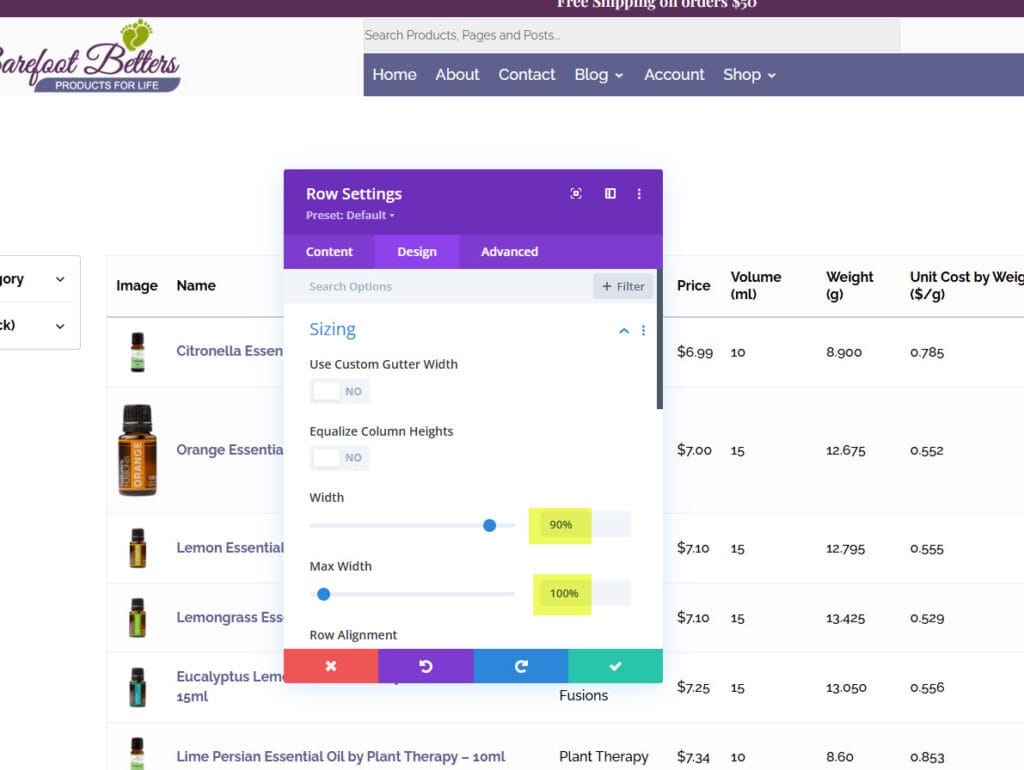
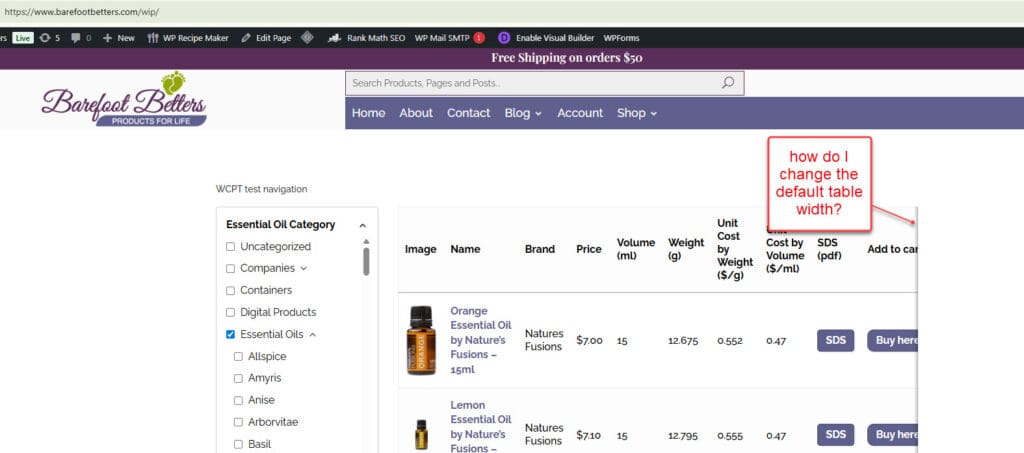
Output Table Width
Divi defaults to a 80% width and a max width of 1056px (?) so when you display wide WCPT table, it gets chopped off and have to horizontally scroll. To solve this problem, edit the /wip page using Divi. Don't use a Divi Theme Builder Template. Select the Row module that contains the WCPT shortcode. Go to the Design tab, change the width to 90%, and Max Width to 100%. See screenshots below.
Common Product Columns
Quantity
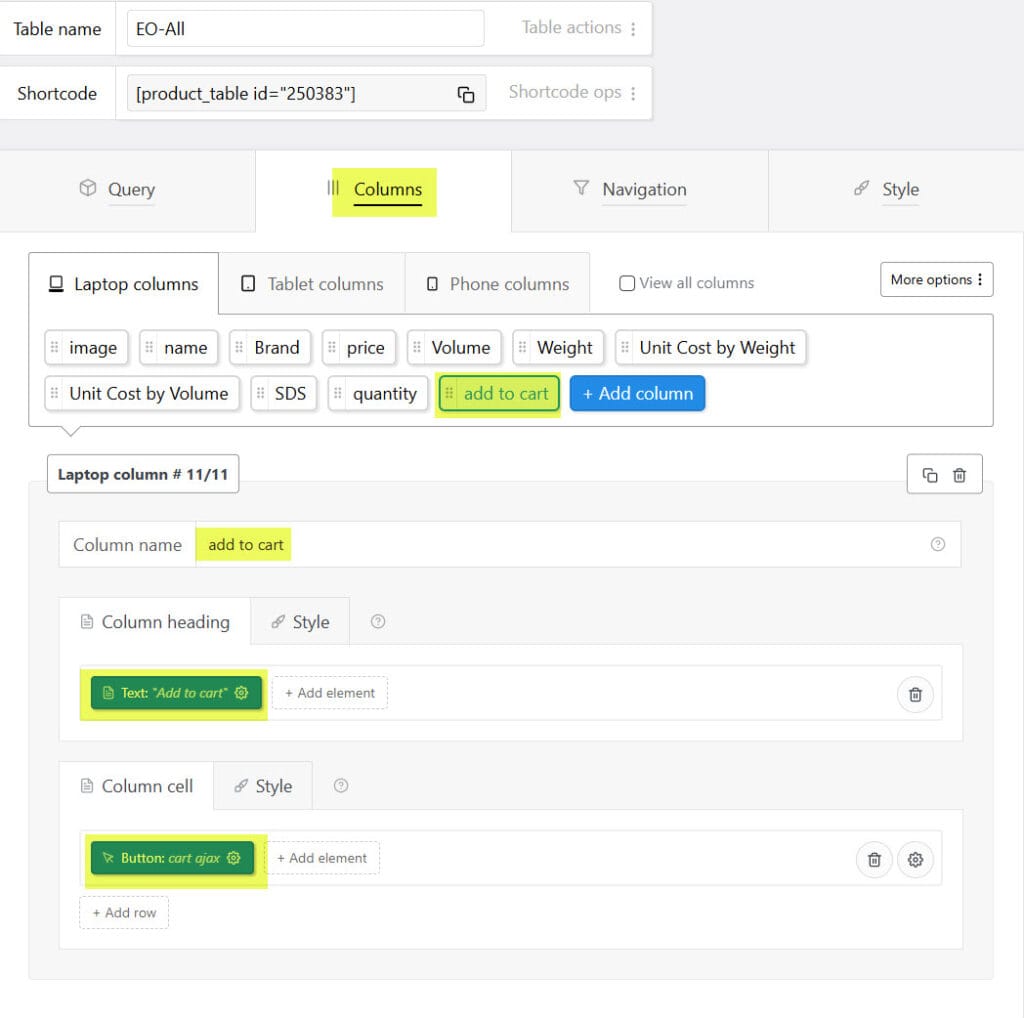
Button - Add to Cart via AJAX
Add to Cart is a button. Under Columen cell -> Add element -> Button -> Add to cart via AJAX
using WC Product Table plugin, Add a New Table. Then select the Columns tab.
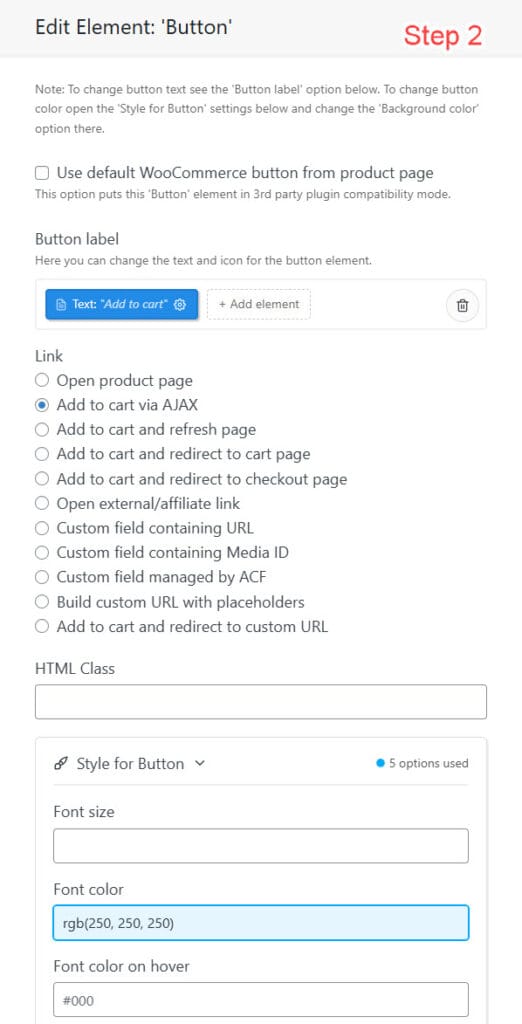
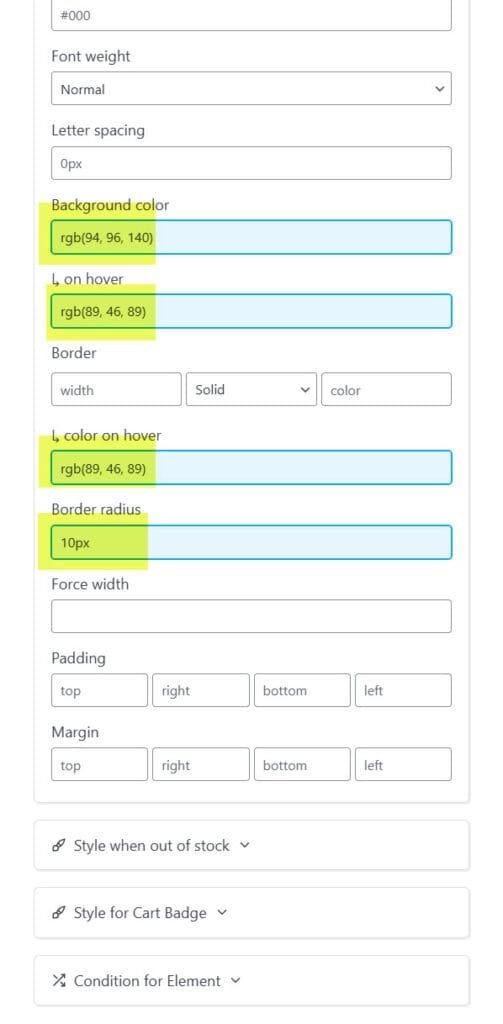
asfd
custom field with hyperlink
Custom Field name / meta key is MSDS
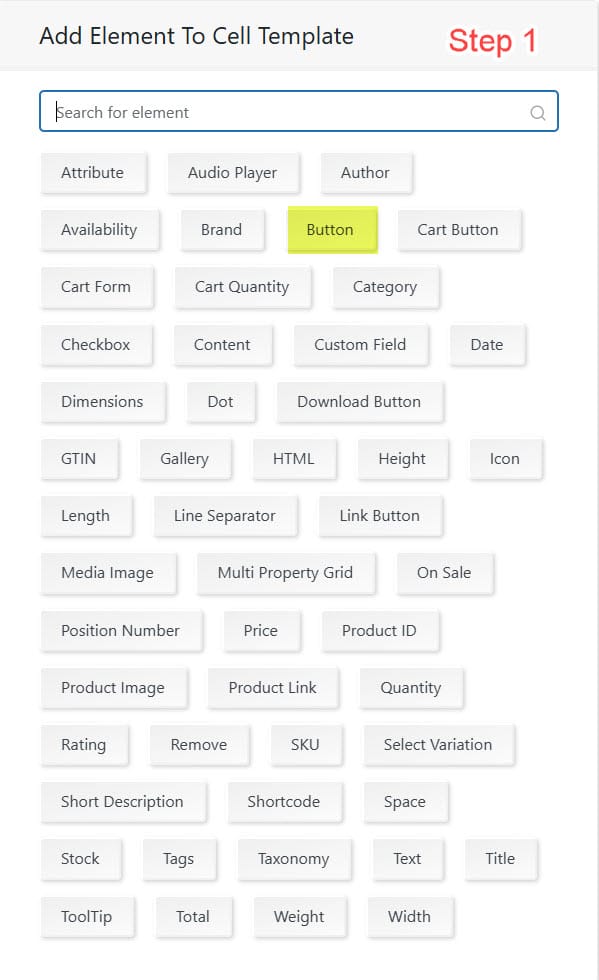
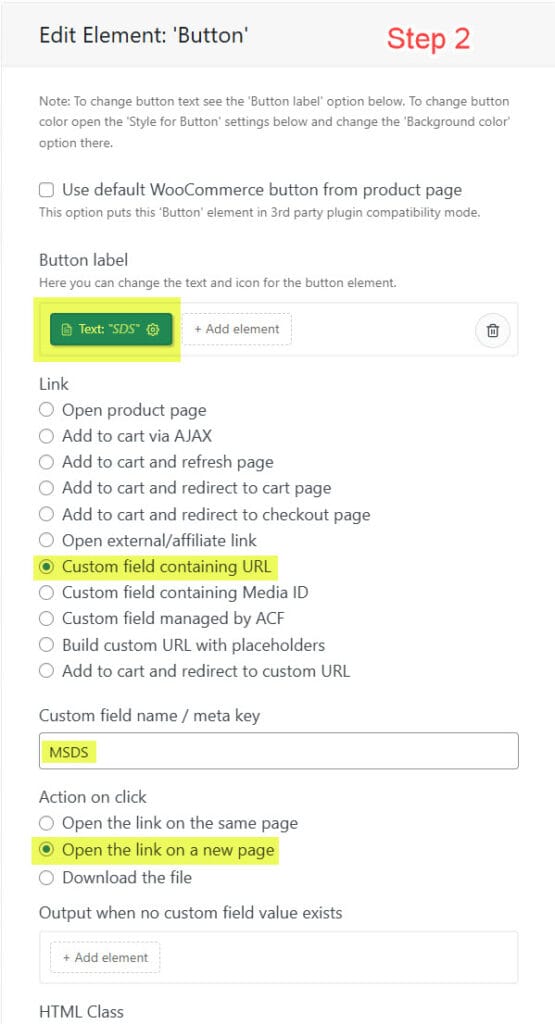
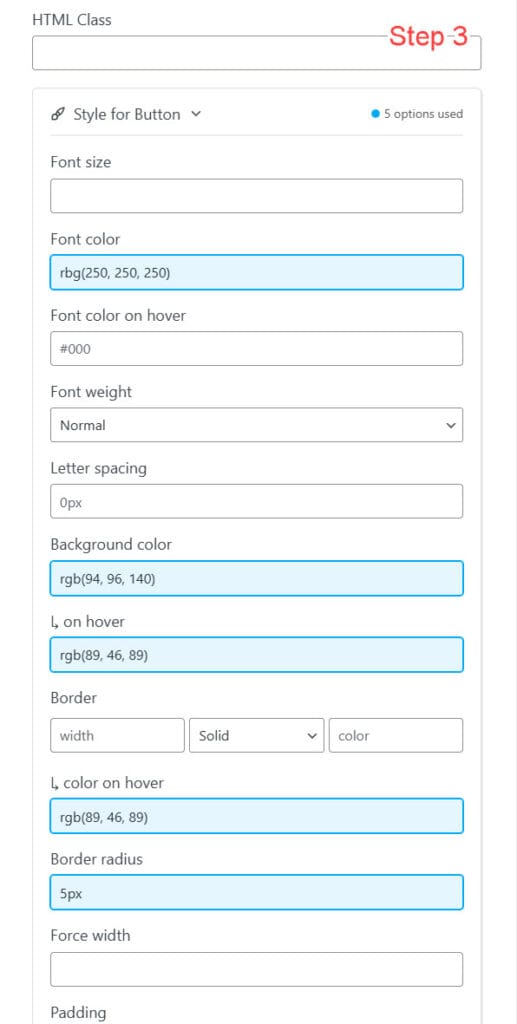
Create a ‘Download button’ for product files like PDF in your table - WCPT Documentation

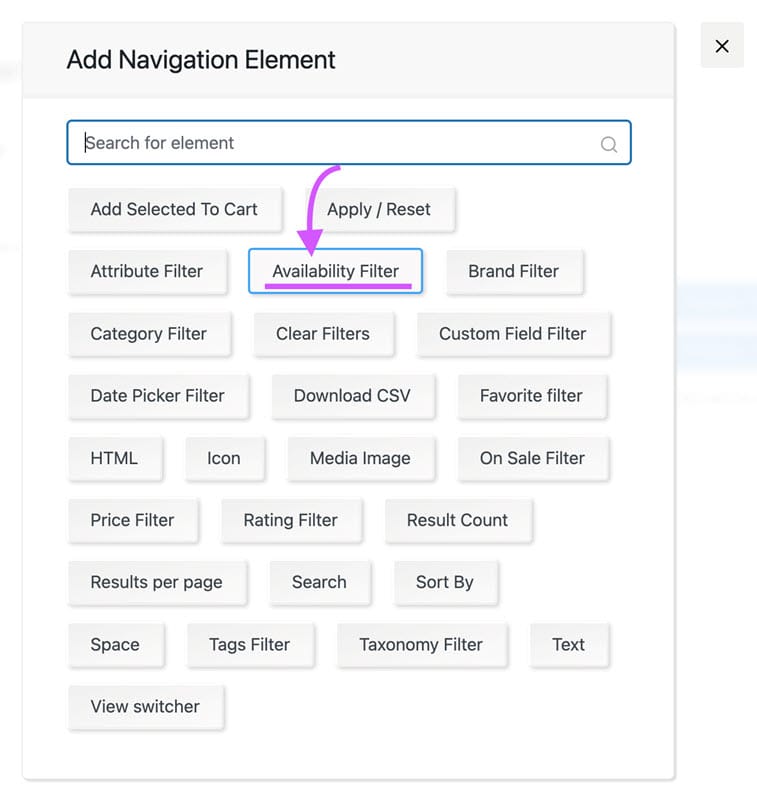
Navigation - Availability Filter
Add a Navigation panel on the left side of the tabular products listing.
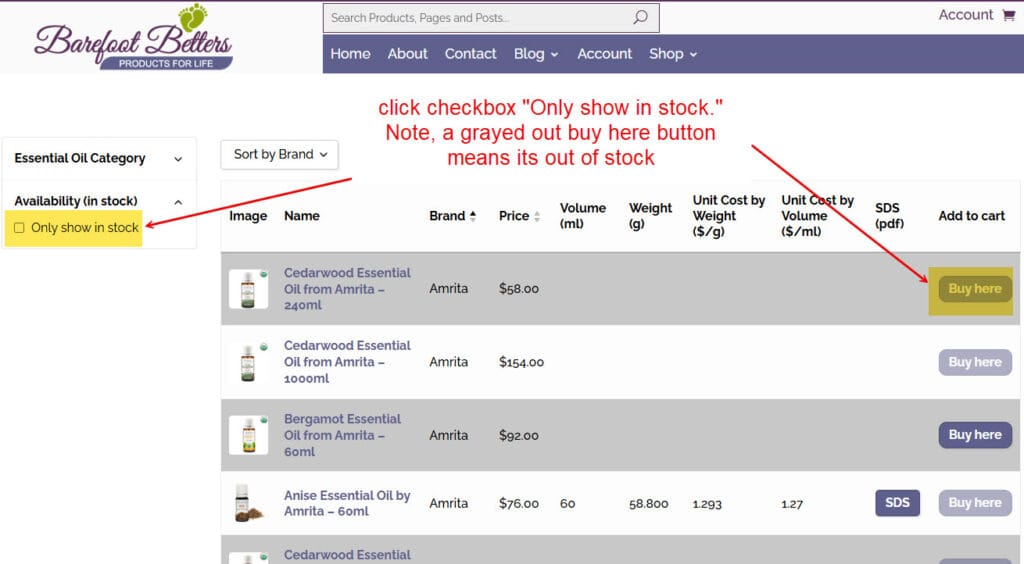
To search for only products that are in stock, use the 'Availability Filter.'
Example - Spare parts Demo 5: List Layout and Tires Demo 4: Grid / Table layout has In Stock checkbox at top of the search results.
Sort Column Headings
Incorporate sorting icons into the column headings of your product table. This will allow shoppers to sort products by clicking on the headings. Customers will be able to arrange products based on various criteria, making it easier for them to compare and find items they are most interested in.
Sort by Brand
From the WordPress Dashboard -> Product Tables. Select Columns tab, then click on the Brand field. Under Column heading tab, click Add element button

to open the "Add Element To Column Heading" window. Then click the Sorting button
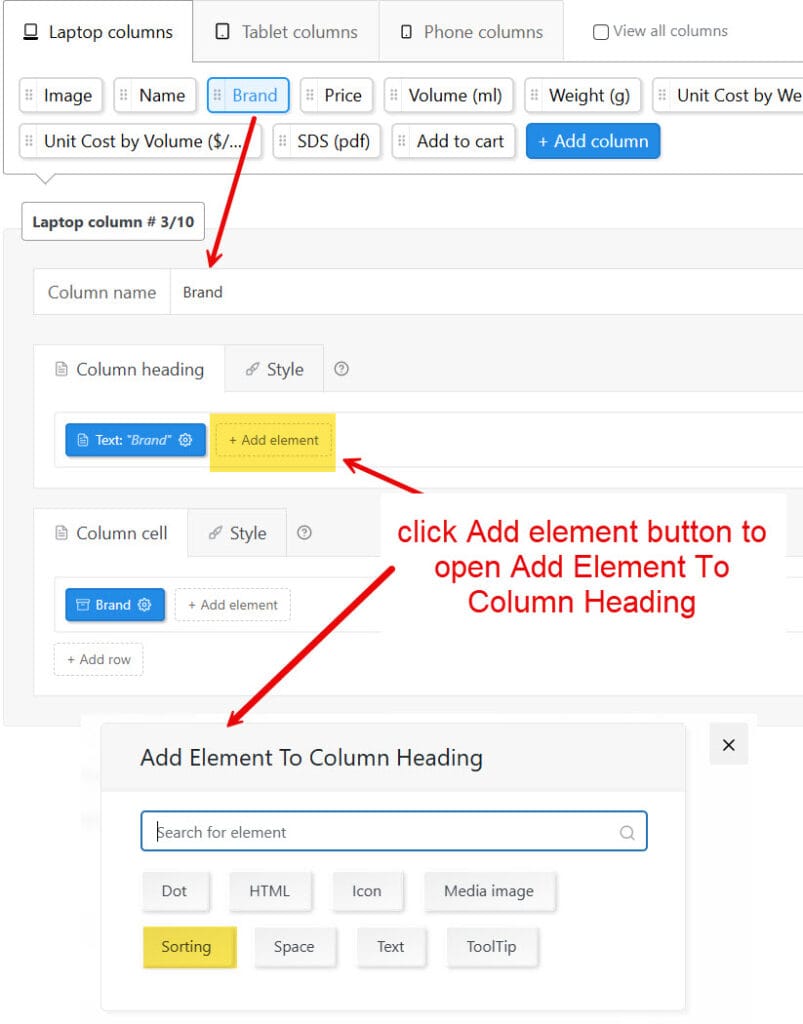
From the Sort by dropdown menu, select Attribute as text and then click save button. Odd feature, but you have to click anywhere on that window to close it (mouse should have a x icon instead of the default arrow).

References
Divi Help - Divi Modules
WC Product Table PRO - Show sorting icons in column headings
WooCommerce Products
Digital Products
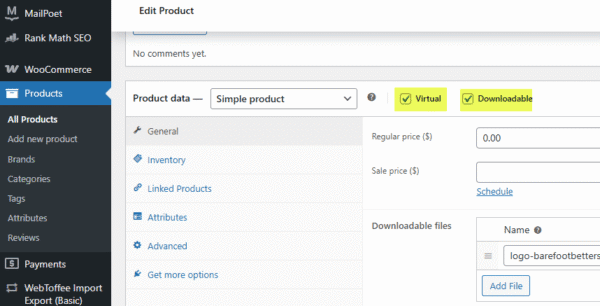
When creating digital products, must check the box Virtual and Downloadable
References
WooCommerce - Digital/Downloadable Product Guide
Product Identification - SKU
Stock Keeping Unit (SKU)
Amazon Standard Identification Number (ASIN) is 10 character code assigned by Amazon
Universal Product Codes (UPC) barcodes are 12 digit numeric codes purchased from GS1 (www.gs1us.org)
- YL#### = Young Living
- DT######## = doTERRA
- AM??#### = Amrita
- ??#### = Amrita Product Code. Example product codes: EO4401 is Orange Sweet Organic Essential Oil
- PT = Plant Therapy
- Persian Lime Essential Oil - doesn't show an item number
- NF = Nature's Fusions
- Lime Essential Oil - doesn't show an item number
Custom Product Fields - Global Attributes, Custom Attributes and Custom Fields
In essence, while attributes work to organize products into categories or groups based on shared characteristics, custom fields add depth to a product’s individual listing by offering additional information that is specific to that particular item.
Global Attributes - filter and sort products by Brand (Plant Therapy, Nature's Fusions, Amrita, etc). Function similar to taxonomies. Helps customers navigating and discovering products through common attributes such as Color, Size, or Material.
Custom Attributes - product specific
Custom Fields - are not used to filter and sort products but to provide specific information about the product such as MSDS link, wholesale price, weight, volume, and so on. Custom fields are additional metadata of your products. Providing specific product details that aren't covered by the default product fields. (see WooCommerce Help - Custom Fields on Products)
Advanced Custom Fields (ACF)
Display Divi Library Shortcodes in a Product
ACF in Divi Step 1 - Divi Library -> Add New Layout
Row name: EOE-Arborvitae where EOE=Essential Oil Emotions
Row module with sizing width=100% and max width=100%

Category: EO-Emotions
Add a Text Module and copy the Essential Oil Emotions Description

Then write down the shortcode, for example "[divi_shortcode id="251251"]"

ACF in Divi Step 2 - ACF -> Field Groups
Label: Product Shortcode
Name: product_shortcode
Type: Text
Settings -> Location Rules: Post Type is equal to Product

ACF in Divi Step 3 -
ACF in Divi Step 4 - WooCommerce Product

ACF in Divi Step 5 - Divi Theme Builder -> Products in Specific Categories: Essential Oils Body Layout -> Edit (pencil icon)

Determine where you want to display the Divi Library shortcode on the products page, then add new Text Module -> Content tab.
Select Use Dynamic Content button (image of three discs with + symbol), then scroll down to ACF: Products

Now the Body heading should show Product Shortcode. Click the green checkbox in the bottom right corner to save.

Google for WooCommerce
Login to the WordPress dashboard -> Edit a product -> Channel visibility click "Complete setup" button
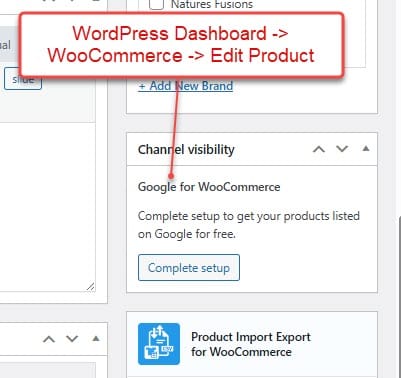
Google Merchant Account - www.google.com/merchants login with barefoot email. For help see
Issue with using gmail and barefoot emails to create a Google merchant account, to resolve logged in a help ticked at I've lost access to my Merchant Center account
Child Theme
Using a Child theme will ensure that any customization is preserved when the parent theme is updated. See How to Create a Child Theme for Divi.
Step 1 - download Child Theme Configurator (child-theme-configurator.2.6.6.zip)
Step 2 - WordPress Dashboard -> Plugins -> Upload Plugin button -> child-theme-configurator.2.6.6.zip. Install and then Activate Plugin.
Step 3 - WordPress Dashboard -> Tools -> Child Themes
References
Code Snippets - https://divibooster.com/using-the-code-snippets-plugin-with-divi/
Divi Table of Contents Maker by Pee-Aye Creative
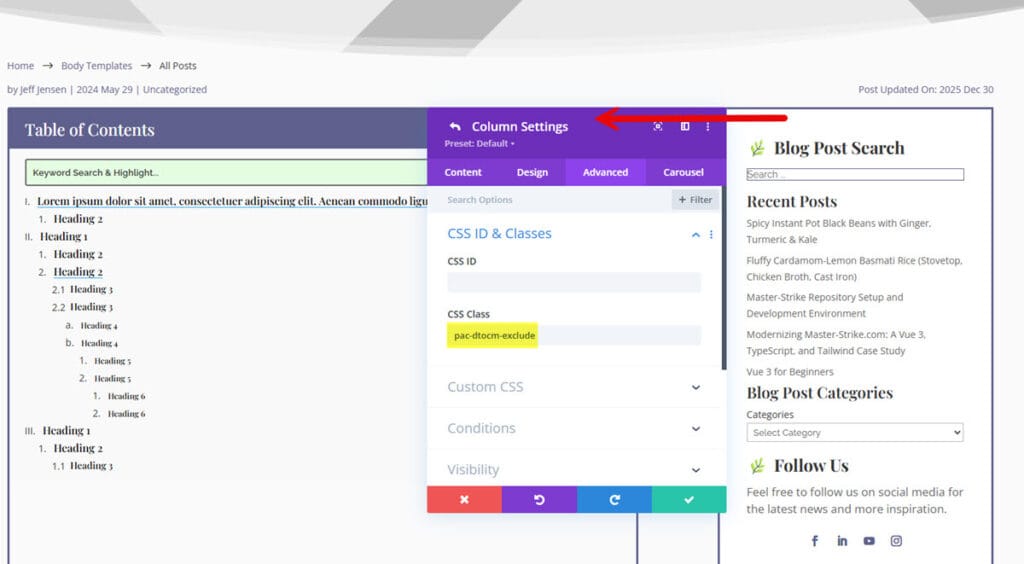
Help - Exclude unwanted headings - Use the Divi element (section, row, or module) > Advanced tab > CSS ID & Classes toggle > CSS class input field = <b>pac-dtocm-exclude</b>. Recommend adding to the highest level such as the section to exclude generating a table of contents entry in all elements within that section.
To exclude the sidebar widget from the table of contents, edit the Theme Builder template in Divi Builder. Go to Row settings, then column settings. Select the 2nd column properties -> Advanced tab -> CSS ID & Classes -> CSS Class -> pac-dtocm-exclude
Spam Protection
Enable Divi spam protection on both the Contact Form Module and the Email Optin Module, see How to Add Google ReCaptcha to the Contact Form Module and Email Optin Module
References - Spam Protection
Divi Help - The Divi Contact Form Module
Divi Help - The Divi Email Optin Module
Spam Orders - Velocity Attacks
To prevent velocity attacks (rapid, repeated fraudulent order attempts, often for card testing) on your WooCommerce site, you can use a mix of free and lower-cost plugins that incorporate features like rate limiting, IP blocking, real-time monitoring, reCAPTCHA, bot detection, and transaction velocity checks. These help by flagging or blocking suspicious patterns, such as multiple orders from the same IP in quick succession.
FraudLabs Pro for WooCommerce offers a free version (up to 500 queries per month and 5 rules), which addresses Velocity Attacks. This seems like a better solution than WooCommerce Anti-Fraud by OPMC which costs $129 a year. To set a velocity attack check, see How to prevent fraud using velocity check. Need to login to the dashboard on www.fraudlabspro.com using jeff email Wonew.com
WordPress Dashboard -> FraudLabs Pro -> General tab -> check on Enable FraudLabs Pro Validation, then click Save Changes button
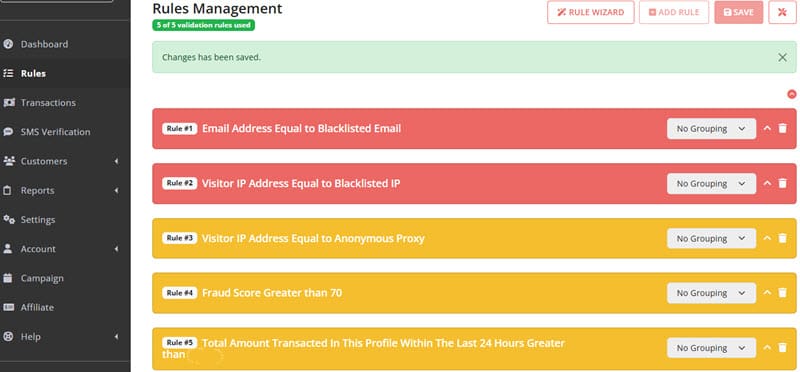
Status - FraudLabs Pro did NOT stop may velocity attacks so I removed the plugin and installed cloudflare instead.
CloudFlare and Namecheap
Login to NameCheap and Change DNS servers from NameHero to cloudflare.com (lakas.ns.cloudflare.com and teagan.ns.cloudflare.com)
Login to cloudflare.com use barefoot email
Thank you for contacting NameHero support.
Hello Jeff,
FraudLabs Pro’s free tier is pretty limited, so it won’t help much against a velocity attack (lots of rapid checkout attempts with different stolen cards). To stop it effectively, you’ll need multiple layers of protection beyond the plugin.
- Rate-limit checkout requests
If you have Cloudflare, enable Bot Fight Mode, set a Rate Limiting Rule on /checkout or /my-account endpoints (e.g., max 10 requests per minute per IP). If you don’t use Cloudflare, you can use a firewall like Wordfence, NinjaFirewall, or your host’s WAF
- Force reCAPTCHA on checkout/login
Add Google reCAPTCHA v3 or v2 (checkbox) at checkout, login, and registration pages. Plugins: “reCAPTCHA for WooCommerce” or “Advanced Google reCAPTCHA”.
- Block disposable emails & BIN ranges
Install “WooCommerce Anti-Fraud” or “YITH WooCommerce Anti-Fraud” (paid but worth it). They can block prepaid/virtual card BINs and temporary email domains.
- Honeypot + extra checkout validation
Add a hidden field (honeypot) at checkout. Bots usually fill it, humans don’t. Use plugins like “WooCommerce Anti-Spam” or custom honeypot code.
- Enable 3D Secure / Strong Customer Authentication
Ask your payment gateway (Stripe, PayPal, Razorpay, etc.) to force 3D Secure (OTP or extra authentication). This alone kills most velocity attacks, since stolen cards fail 3DS checks.
Thank you.
========
We're Here to Help!
Adam S. | Sr. Level III Support
[email protected]
Customer Help Center: https://help.namehero.com
CloudFlare and LiteSpeed Cache
WordPress dashboard -> LiteSpeed Cache -> CDN -> Cloudflare API
Cloudflare API token or Global API key, account email, and domain. This allows LiteSpeed Cache to automatically purge Cloudflare cache whenever site content changes.
Please disable QUIC.Cloud, if you wish to use Cloudflare. Please note, there will be a propagation delay or downtime after the switch for some hours.
Login to QUIC.cloud - https://my.quic.cloud/dm/www.barefootbetters.com
Cloudflare
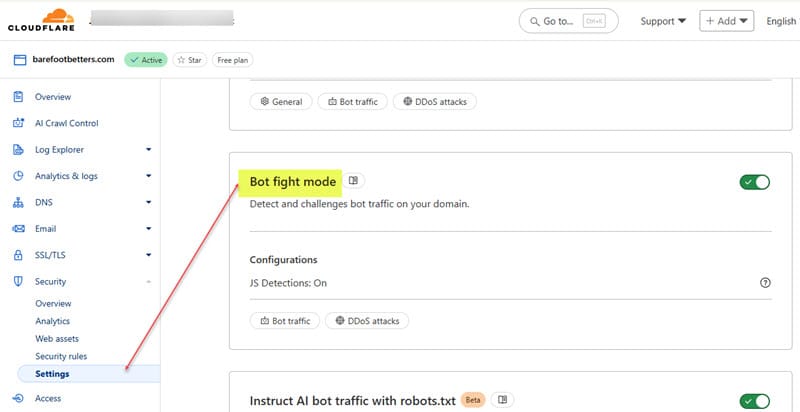
Security > Overview -> Bot traffic ->Bot fight mode
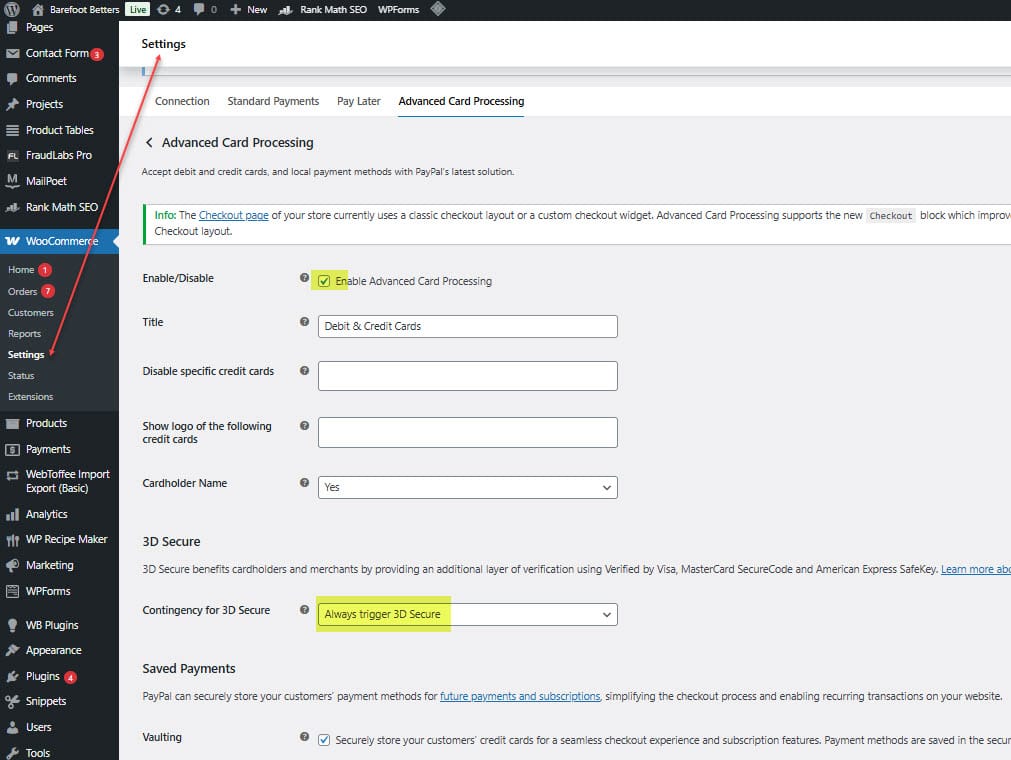
WooCommerce Advanced Card Processing
Enable 3D Secure (Strong Customer Authentication) with PayPal payment gateway. This stops most velocity attacks since stolen credit cards fail 3DS checks.
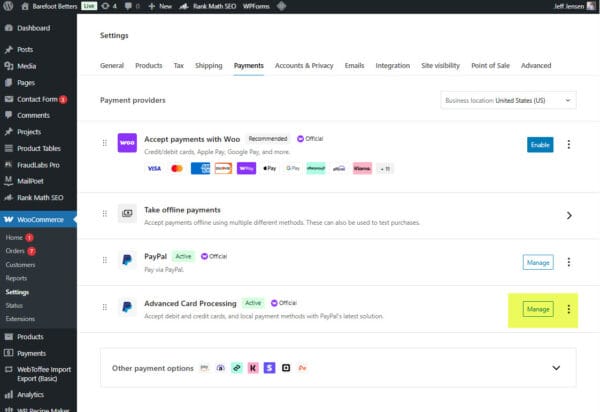
Step 1 - login to the WordPress admin dashboard
Step 2 - WooCommerce -> Settings -> Payments
Step 3 - Paypal -> Manage, then will see another menu with options of Connection, Standard Payments, Pay Later and Advanced Card Processing
Step 4 - Enable Advanced Card Processing and then for 3D Secure -> Contingency for 3D Secure -> Always trigger 3D Secure
WooCommerce Stripe Gateway
Both WooCommerce and Stripe confirm that you do NOT need to manually enable 3D Secure. It is automatically triggered whenever the customer's bank requires authentication. To verify your store is using 3D Secure:
Step 1 - WordPress Dashboard -> Plugins -> Installed Plugins -> WooCommerce Stripe Gateway

Step 2 - WooCommerce -> Settings -> Payments -> Stripe -> Credit Cards -> Manage -> Payment Methods
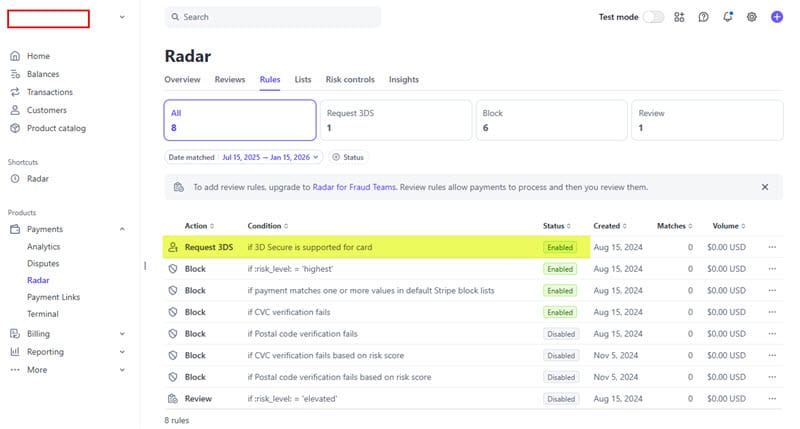
Step 3 - Stripe request 3DS
Login to your stripe.com account, dashboard -> Radar -> enable Request 3DS
PayPal and Venmo
With Advanced Card Processing, then just get the option to check out with PayPal or venmo
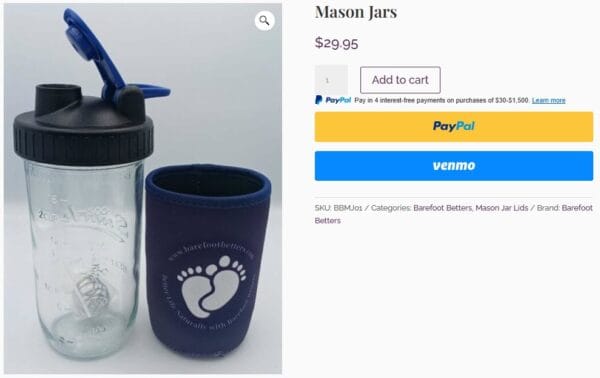
Verify WooPayments plugin is disabled and use WooCommerce PayPal Payments plugin as it works with Divi Checkout
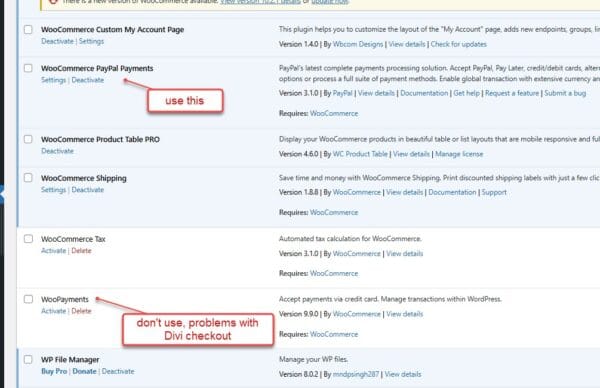
WooCommerce PayPal Payments
Reference: Woo Documentation - WooCommerce PayPal Payments
WordPress Menu
Home
About
Contact
Blog
Account
Shop
Shop -> All Products
Shop -> Product Categories
Nothing is being displayed here, need to fix

Product Categories (different from Blog Categories)
- Companies/Brand
- doTERRA
- Nature's Fusions
- Plant Therapy
- Containers
- Essential Oil bottles, roller bottles, cap remover tool,
- Mason Jars
- Mason Jar Accessories (flip top lids, shaker wire whisk balls, jar jackets)
- Soap Case
- Essential Oils
- Clove
- Cypress
- Tea Tree
- Herbs & Oils
- Herbally Grounded
- Shaving Oil
- Heart Oil
- Soaps
- Recipes and Formulas
Shop -> Product Categories -> Companies
Shop -> Product Categories -> Essential Oils
Step 1: Divi Theme Builder -> All Product Category Pages
Step 2: Text Module to display Snippet

Step 3: write Snippet shortcode - et_display_categories called Product Subcategory shortcode

WordPress Pages
Page - Home
home-7 Explanatory paragraph
Write a paragraph that 1-States the Problem, 2-Provide a Solution, and 3-Define what Success looks like.
Our artisanal soaps work harmoniously with your skin's natural balance, helping address common skin concerns through carefully selected essential oils and natural ingredients. Each bar is thoughtfully crafted to cleanse without stripping your skin's protective barrier, while nourishing oils and botanical ingredients help soothe irritation and reduce inflammation. While these soaps are an excellent foundation for skin health, they work best as part of a complete skincare approach, which includes eating anti-inflammatory foods and healthy bowels to remove toxins and waste that build up in the body. This mind-body connection helps improve circulation and overall skin vitality from the inside out. When using our soaps as part of your daily ritual, you'll notice your skin becoming more radiant and resilient - feeling softer, looking more luminous, and maintaining a healthy, natural glow. Many customers report their skin feeling cleaner, more balanced and revitalized after incorporating our soaps into their skincare routine.
home-8 testimonials
home-9 Lead Magnet section
References
- How To Build a Homepage That Works With StoryBrand by Kari at Wild Fig Marketing
Page - Category
How to display a grid of categories in Divi for posts, WooCommerce Products, Events, Or Other CPT (blog post) by Pee-Aye Creative
Backup
How to Recover Missing or Deleted Content on a Page
Use the WordPress Revision System (WordPress Dashboard -> Pages -> All Pages, then Edit the page that lost the content or layout. From the right sidebar, click on the Revisions link. See Divi Help - How to Recover Missing or Deleted Content on a Page


0 Comments